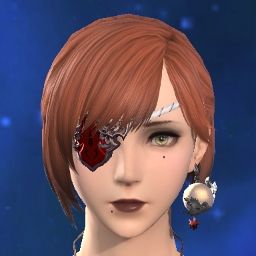
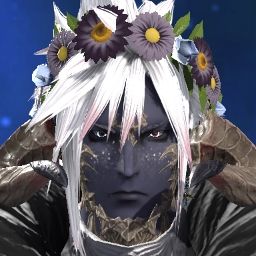
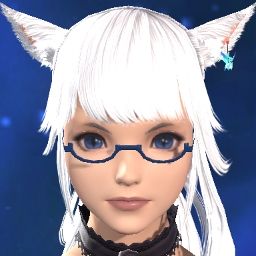
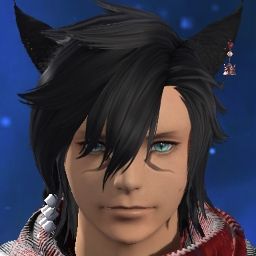
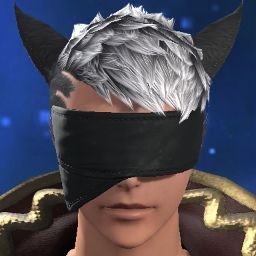
I finally decided to make a little tutorial about cutting your character from a screenshot using Photoshop (it works only on PC, I suppose?). Maybe someone will find it useful for making userpics or userbars ^_^
For easy work we'll be using a not-so-new feature that was added in patch 2.1 - target highlighting. I also uploaded these 5 images to help you understand what I mean.
So, here we go:
1. Open your character configuration menu. Check boxes called "Highlight potential targets" in Target Display Settings (Target tab) and "Enable clicking on self" in Mouse Targeting (Mouse tab). Apply.
2. Download a program called Bandicam to capture screenshots every 0.1 seconds!
3. Adjust camera angle and pose like you want, then hide the UI (Scroll Lock key) and don't touch anything except screenshot button and your mouse from now on!
4. Our character always breathes and thereby moves a little while standing still, but the animation is cycled! Use Bandicam to take 10 screenshots per second of this animation! Hover your mouse over the character, make enough screenshots while your character is highlighted, then move the cursor away and make the same amount of screenshots without highlighting.
5. Find two identical screenshots with target highlighting and without it among those that you just took.
6. Open them both in one Photoshop project (I was using Photoshop CS5). Put each of two screenshots on different layers (hit [F7] to bring the layers menu). If one of the layers is called "Background" and is locked, double click it to turn it into a normal layer. Bring the layer with highlighted character on top and use Magic Wand Tool (hotkey [W]) with fitting tolerance to select the area around your character. You can select multiple areas by holding [Shift] - it's useful to add "holes" like between arms and the body. Once this area is selected (you can zoom in to check the accuracy - if it's not too accurate, change tolerance and try again), hide the layer with highlighted character and make a layer without highlighted character active. Then hit [Del] key to cut the background. If you did everything right, you'll have your character on a transparent background, so you can do whatever you want with it ^_^ I suggest auto-correcting contrast and tone before doing anything else, though (:
As example, you can see the result of my work in my previous post (and in my guestbook, too:
http://j.mp/AlisaArkwright )
And hey, share your works with me if you want ^.^ I'll be glad to see them all!